Your complete printer support guide

Get Your Printer Working — Fast

Easy, step-by-step guides to help you install, connect, troubleshoot and fix your printer. Whether it’s a new setup, Wi-Fi connection, driver download or an error — start here.
Simple step-by-step instructionsHelpful tips for common issuesMajor printer brands covered
Explore Guides
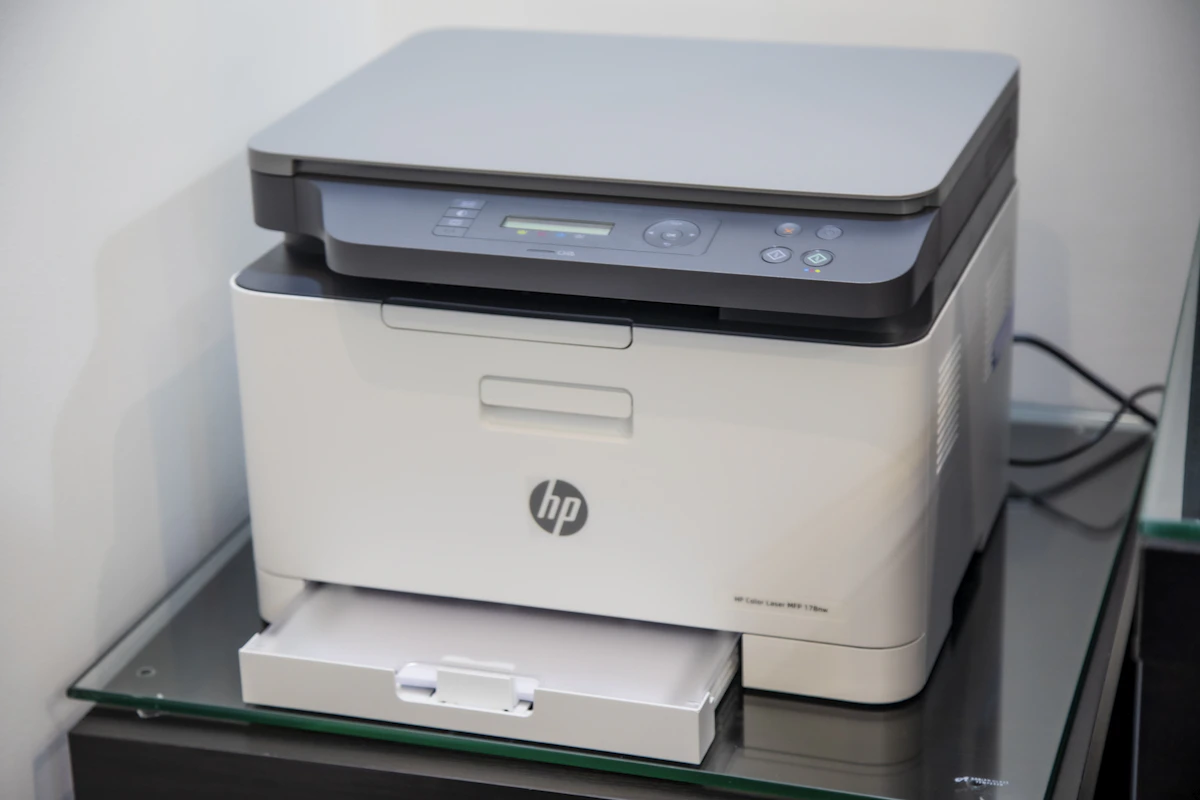
Home office printer on a desk
Print smarter
not harder

Printer Setup

Set up your new printer with ease.

Driver Downloads

Find the right driver for your model.

Wi-Fi & Network

Connect your printer to your network.

Troubleshooting

Fix common printer issues and errors.

Helpful Blog

Tips, guides and practical advice.

Works With Many Major Printer Brands

hp
Canon
EPSON
brother
LEXMARK
SAMSUNG
OKI

Brand names are used only to identify compatible products. FixPrinters.uk is an independent information website and is not affiliated with or endorsed by these manufacturers.

Latest guides & blog

Printer Setup & Troubleshooting Guides

Practical help for common printer issues — from first-time installation to Wi-Fi setup and everyday errors.

View All Guides  →
Printer ready for installation
Printer setup

How to Set Up a New Printer (Windows & Mac)

Unpack your printer, prepare paper and ink, then add it to your computer using the right setup method.

Read Guide →
Laptop being used to find printer software
Drivers

How to Download and Install Printer Drivers

Identify your exact printer model and operating system, then find software from the manufacturer's official website.

Read Guide →
Wireless networking equipment
Wi-Fi & network

How to Connect Your Printer to Wi-Fi

Connect through the printer screen, a wireless setup utility or WPS when your router and printer support it.

Read Guide →
Office equipment and computer
Troubleshooting

Printer Showing Offline? Here's How to Fix It

Check power, connections, queue status and network settings to help bring your printer back online.

Read Guide →
Technical troubleshooting at a desk
Errors & fixes

Common Printer Errors and How to Troubleshoot Them

Learn safe first checks for paper jams, cartridge alerts, connection errors and unclear status messages.

Read Guide →
Laptop on a work desk
Troubleshooting

Printer Not Working? Try These Checks First

Work through a simple checklist for jobs that will not print, blank pages, slow printing or unresponsive devices.

Read Guide →
Printer supplies and accessories
Maintenance

How to Replace Printer Ink or Toner

Check cartridge compatibility, follow your model's replacement instructions and dispose of used supplies responsibly.

Read Guide →
Laptop for adjusting print settings
Print quality

Printer Settings for Better Print Quality

Choose the right paper type, quality setting, colour mode and layout for everyday documents and photos.

Read Guide →
No guides match that search. Try “Wi-Fi”, “driver” or “offline”.

Still facing issues?

Start with the basics, then follow the guide that matches your exact symptom. Always check your printer's manual for model-specific instructions.

Visit Troubleshooting Hub  →

A simple troubleshooting routine

Try these general checks before changing advanced settings.

Check power and statusConfirm the printer is on, has no obvious jam and displays no unresolved warning.
Check the connectionFor USB, reseat the cable. For Wi-Fi, confirm the printer and computer are on the intended network.
Review the print queueClear stuck jobs if needed, then try printing a test page.
Use the official manualFollow model-specific steps before resetting the printer or changing network settings.
Step-by-step learning centre

Popular Printer Help Articles

Use these starter guides to work through frequent setup and printing questions.

How to set up a new printer

Most home printers can be set up with a few careful steps. The exact sequence varies by model.

Unbox and prepareRemove all packaging and shipping tape. Install the included cartridges or toner as directed in the printer manual.
Load paper and power onPlace compatible paper in the tray, connect the power cable and turn on the printer.
Choose a connectionConnect by USB, Wi-Fi or Ethernet if supported. Keep the printer near the router during wireless setup.
Add it to your deviceOn Windows, open Settings → Bluetooth & devices → Printers & scanners. On macOS, open System Settings → Printers & Scanners. Select Add Printer.
Print a test pageUse the printer utility or computer settings to confirm it prints correctly. Follow the manufacturer's instructions if alignment is requested.

How to download printer drivers safely

A driver helps your computer communicate with the printer. Use trusted sources to avoid incorrect or unwanted software.

Find the exact modelCheck the label on the printer or its information screen. Similar model names may use different drivers.
Visit the manufacturer's official support siteType the official brand website into your browser yourself, then open its support or downloads section.
Select your operating systemChoose your Windows or macOS version and architecture when options are provided.
Download and installRead the installer prompts, connect the printer when requested and restart your computer if the installer asks.
Avoid suspicious downloadsBe cautious of third-party driver bundles, unexpected payment demands and installers that ask you to disable security protections.

How to connect a printer to Wi-Fi

Use the method supported by your printer. Menu names can differ between models.

Check your networkConfirm your Wi-Fi is working. Some printers only support 2.4 GHz networks; check the model specifications.
Open wireless settingsOn the printer screen, find Network, Wireless or Wi-Fi Setup and choose your network name.
Enter the passwordType the Wi-Fi password carefully. If your printer has no screen, use the manufacturer's setup app or computer utility.
Add the printer on your deviceMake sure your computer or phone is connected to the same network, then add the printer through system settings or the official app.
Test the connectionPrint a test page. If setup fails, restart the printer and router, then follow the model-specific troubleshooting guide.

Printer showing offline? Try these fixes

“Offline” can mean the computer cannot currently communicate with the printer.

Check the basicsMake sure the printer is powered on and not displaying an error. For Wi-Fi printers, confirm it is connected to the correct network.
Restart devicesTurn the printer off, wait briefly, turn it back on and restart your computer if needed.
Check the queueOpen your computer's printer queue and cancel any stuck jobs. On Windows, also check that “Use Printer Offline” is not selected where that option is available.
Reconnect the printerFor USB, try another port or a known-good cable. For Wi-Fi, check the router connection and add the printer again if necessary.
Update only from trusted sourcesInstall a compatible driver or utility from the manufacturer's official support site if connection problems continue.

Common printer errors and safe first checks

Error codes are model-specific, so record the exact wording or number before troubleshooting.

Paper jamFollow the manual's jam-removal instructions. Pull paper gently in the recommended direction and never force internal parts.
Ink or toner warningCheck cartridge compatibility and installation. Some printers require a confirmation step after replacement.
Communication errorCheck cables or Wi-Fi, then restart the printer and computer. Verify the selected printer is the one you intend to use.
Unrecognised codeWrite down the full code and search the official manual or manufacturer support page for your exact model.

Printer not working? A practical checklist

Work from the simplest checks to more specific solutions.

Confirm the right printerIn the print dialogue, select the intended printer rather than a PDF or virtual printer.
Check the document and queueTry a simple test page. Clear stuck jobs if the queue is not progressing.
Check supplies and paperLook for empty cartridges, incorrectly loaded paper, open covers or displayed warnings.
Inspect print qualityIf pages are blank or streaky, use the printer's built-in maintenance tools as directed in its manual. Avoid excessive cleaning cycles.

How to replace ink or toner

Consumables differ by printer family; always check the model's manual and cartridge number.

Confirm compatibilityMatch the cartridge or toner number to your exact printer model and region.
Prepare the replacementOpen the access panel as instructed. Avoid touching electrical contacts or ink nozzles.
Install and closeRemove protective packaging, insert the cartridge in the correct slot and close the cover.
Run the recommended checkFollow any on-screen prompts and print a test page. Recycle used supplies through an appropriate collection scheme.

Printer settings for better print quality

Good output starts with matching settings to the job and the paper you are using.

Choose the correct paper typeSelect plain paper, photo paper or another matching option in the print dialogue.
Adjust quality settingsUse standard quality for everyday drafts and higher quality when detail matters, if supported.
Check colour and layoutConfirm paper size, orientation, scaling, colour mode and double-sided settings before printing.
Maintain the printerIf print quality remains poor, use built-in nozzle checks, alignment or cleaning features according to the manufacturer's instructions.
Independent resource: FixPrinters.uk provides general educational information for printer setup and troubleshooting. It is not an official support service for HP, Canon, Epson, Brother or any other manufacturer. Product names and trademarks belong to their respective owners. Steps may vary by model and operating system; consult the official manual for model-specific guidance. Never share passwords, payment details or remote-access codes with an unverified support provider.